


Environments
Repositories
Promote/Publish
Teams
Launch Buttons
Promotions
Tagging
CLI Guide


2
min
M2M Credentials
Overview:
Machine-to-Machine (M2M) credentials allow Organization Administrators to create and manage machine tokens from the Solsta Desktop Application.
These credentials can be used for:
- CI/CD deployments
- Authenticating the Solsta CLI for automated installs or updates on unattended machines
Note: Note that once the machines are created, they must be assigned a role for an object or be assigned to a team in order to access objects for installs or deployments.
The Manage Roles and Permissions article covers object-level permissions in more details.
Create/Manage Machine Token (M2M Credentials)
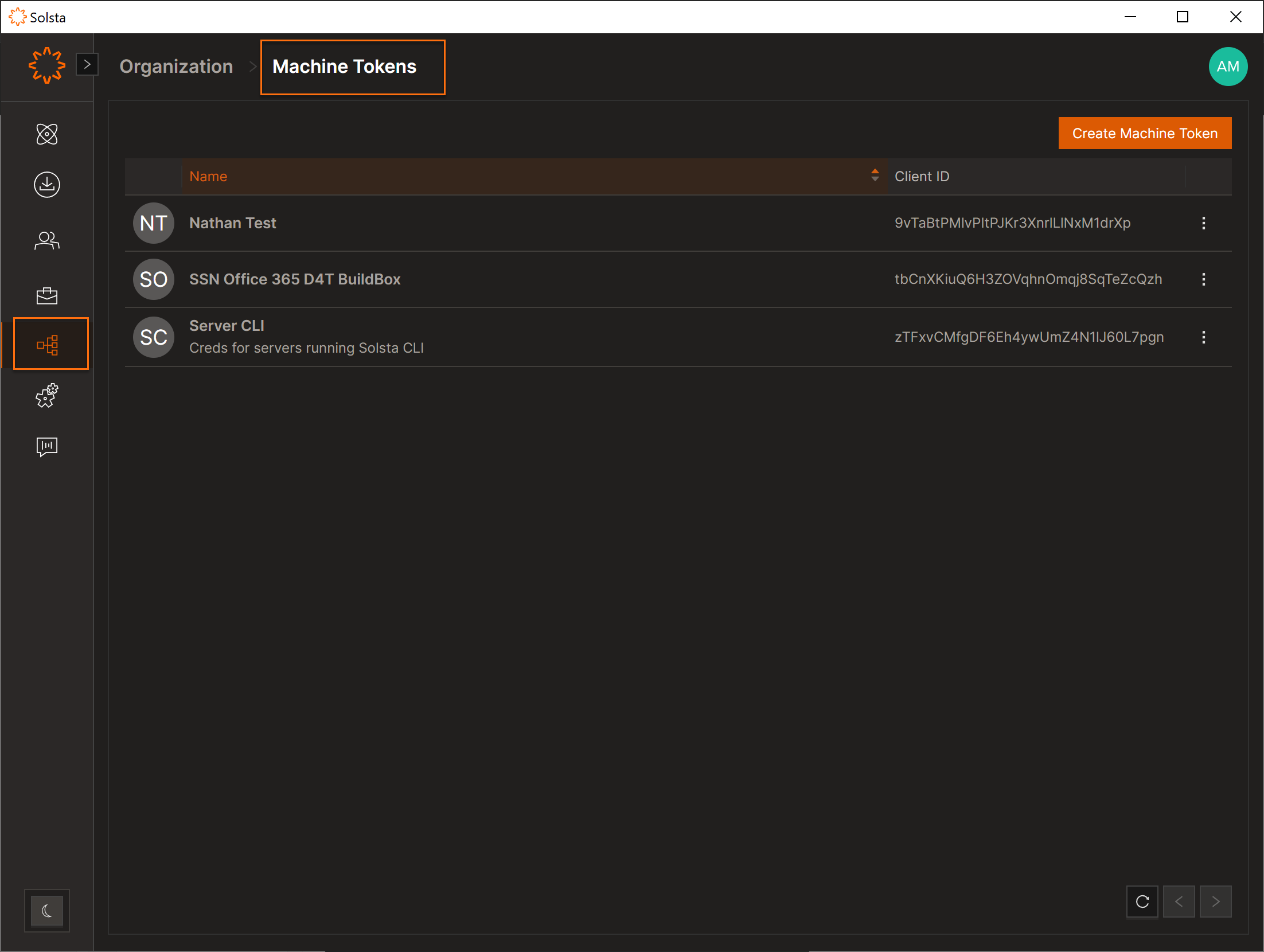
- Log in as Admin and go to Organization → Machine Tokens.
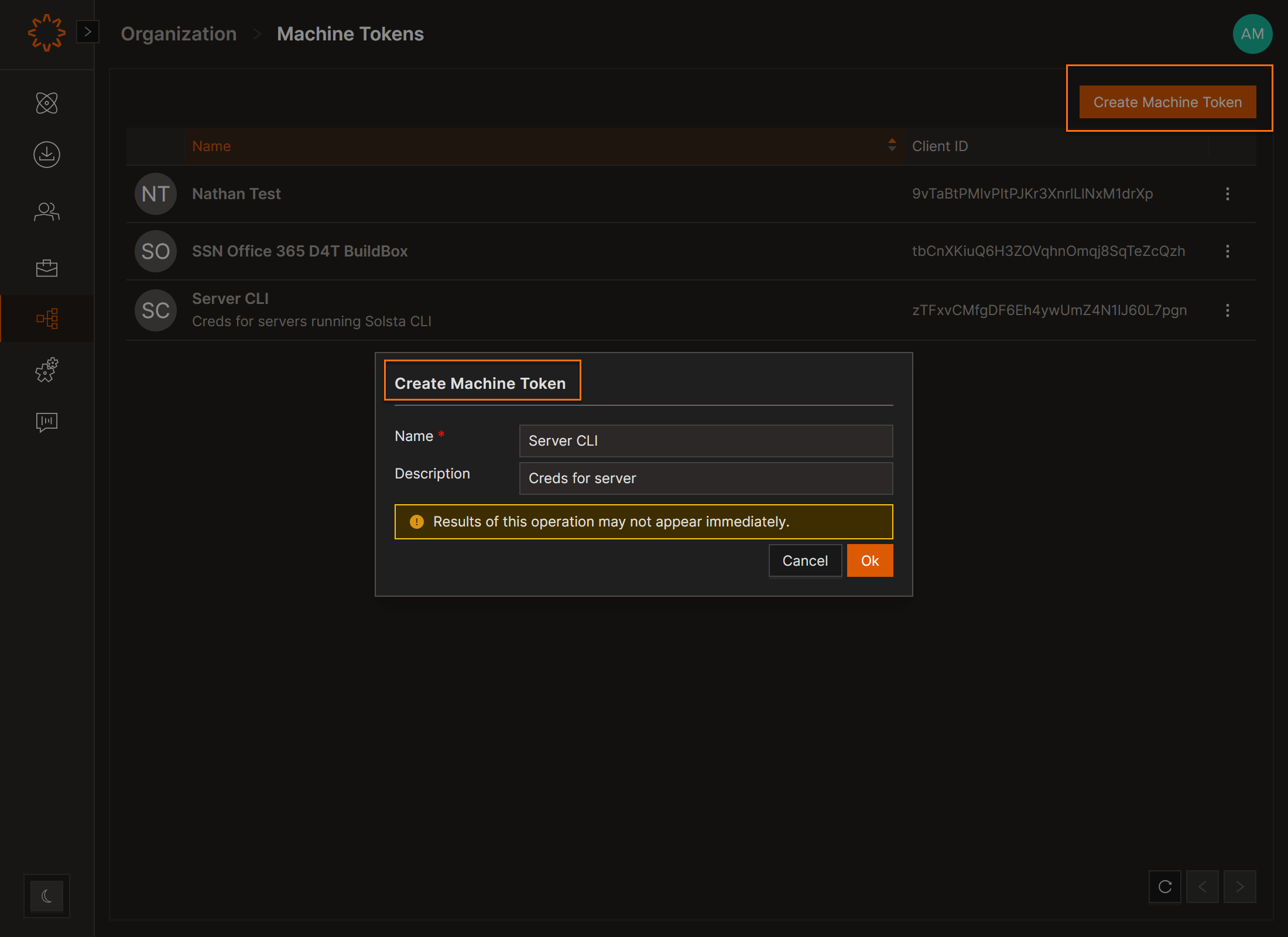
- Click Create Machine.
- Enter a Name and Description, then click OK.
- Copy the Client ID and Client Secret (the secret will not be shown again).
- Click OK.
- If needed, click Refresh to update the list.
Edit/Delete Machine Token
- Click the three dot menu
- Click edit or delete
- Click OK.
Assign a Role to a Machine
To grant a machine access, assign it a role at the Product or Environment level.
- Viewer – Allows the machine to view, install, and update all environments within the product.
- Admin – Required for CI/CD deployments and other administrative actions.
Note: Roles can also be assigned at the Environment level to restrict access to a specific environment.
Steps
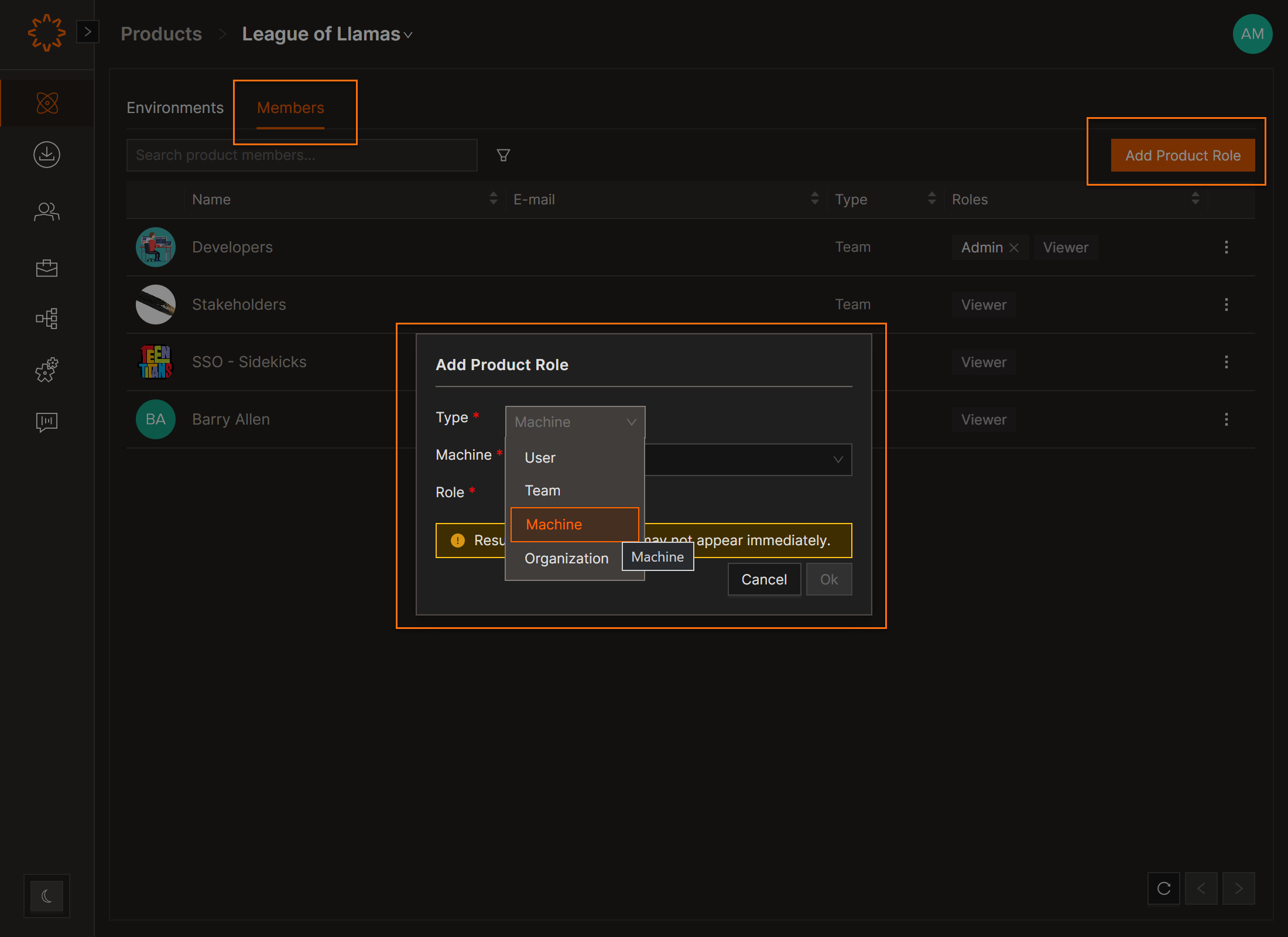
- Navigate to the Product (or Environment).
- Click the Members tab.
- Click Add Product Role.
- Select Machine from the Type dropdown.
- Select the machine name.
- Choose Viewer or Admin.
- Click OK.
DOs
DONTs
Pro Tips


