


Environments
Repositories
Promote/Publish
Teams
Launch Buttons
Promotions
Tagging
CLI Guide


3
min
Debug Logs
Overview:
The Solsta Desktop Application automatically generates debug logs for each session. These debug logs help the Solsta development team troubleshoot issues and identify improvements. This article outlines how to find debug logs so they can be attached to a support ticket.
How to Find Solsta Debug Logs in Windows
- Open Windows Explorer
- Navigate to C:\Users\USERNAME\AppData\Local\Solsta
- Grab or copy host.developer.log and host.developer.elevated.log (if the previous session ran with Administrative privileges)
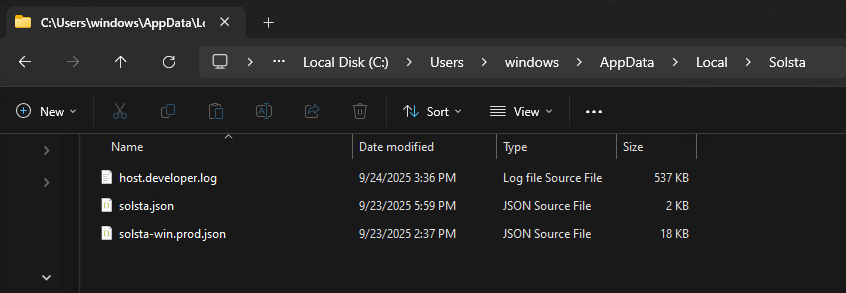
The Solsta Desktop Application overwrites debug logs with each new session. You can rename log files or move them out of this directory to save unique instances of these files before starting a new session. You can also run the Solsta client from a terminal with the arguments below to modify the logging behavior:
- --append -- adds new session to the existing log file
- --debugdir=path -- write debug log files to specified directory
- --debugfile -- write debug log to user desktop
- --maxdays=number -- maximum number of days to keep logs, works in conjunction with --perday
- --perday -- creates a debug log file for each day
Example:
solsta.exe --debugdir=c:/temp/logs/ --perday --maxdays=3
How to Find Solsta Debug Logs in macOS
- From Finder, click on Go Menu atop the screen and select Go to Folder (keyboard shortcut: shift+CMD+G)
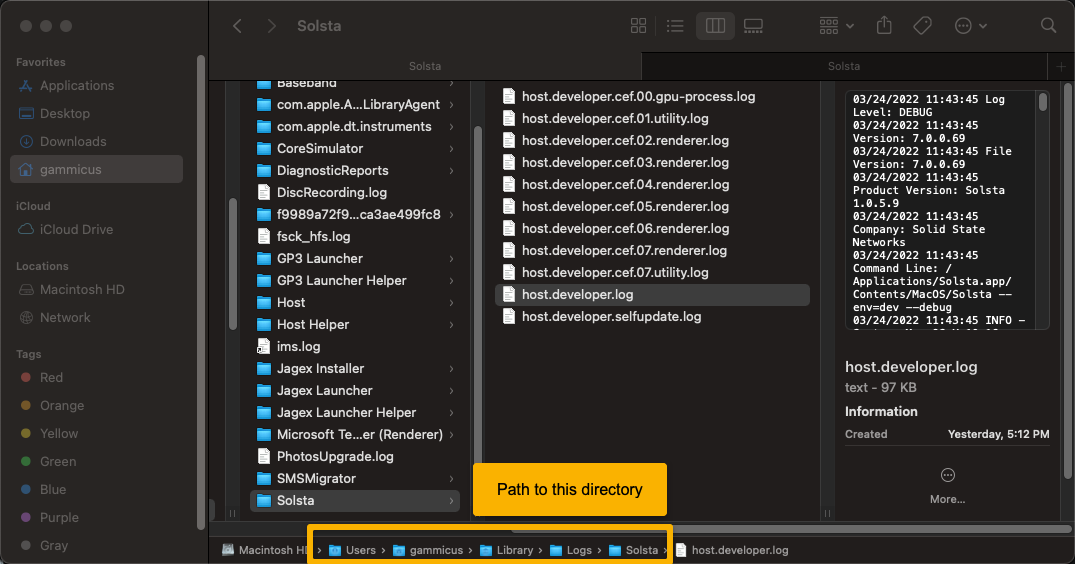
- Type in
/Users/username/Library/Logs/Solstathen click Go - Grab or copy host.developer.log
DOs
DONTs
Pro Tips
In Windows, you can use %localappdata% in a run window or an explorer window to open an explorer window to C:\Users\USERNAME\AppData\Local.


