


Orchestration Service
Overview
The Solsta Orchestration Service helps studios control how many installs or updates happen at the same time on a shared network. This prevents large build downloads from overwhelming studio bandwidth.
When throttling is enabled for a network, Solsta clients check with the Orchestration Service before starting an install or update. The service either allows the download to begin immediately or places it in a queue until capacity becomes available.
When to use Throttling via Orchestration Service
Use this feature when:
- Many users download large builds from the same studio network
- Build updates are causing network slowdowns
- QA labs or shared device pools need controlled update behavior
- Organization admins need visibility into active and pending downloads
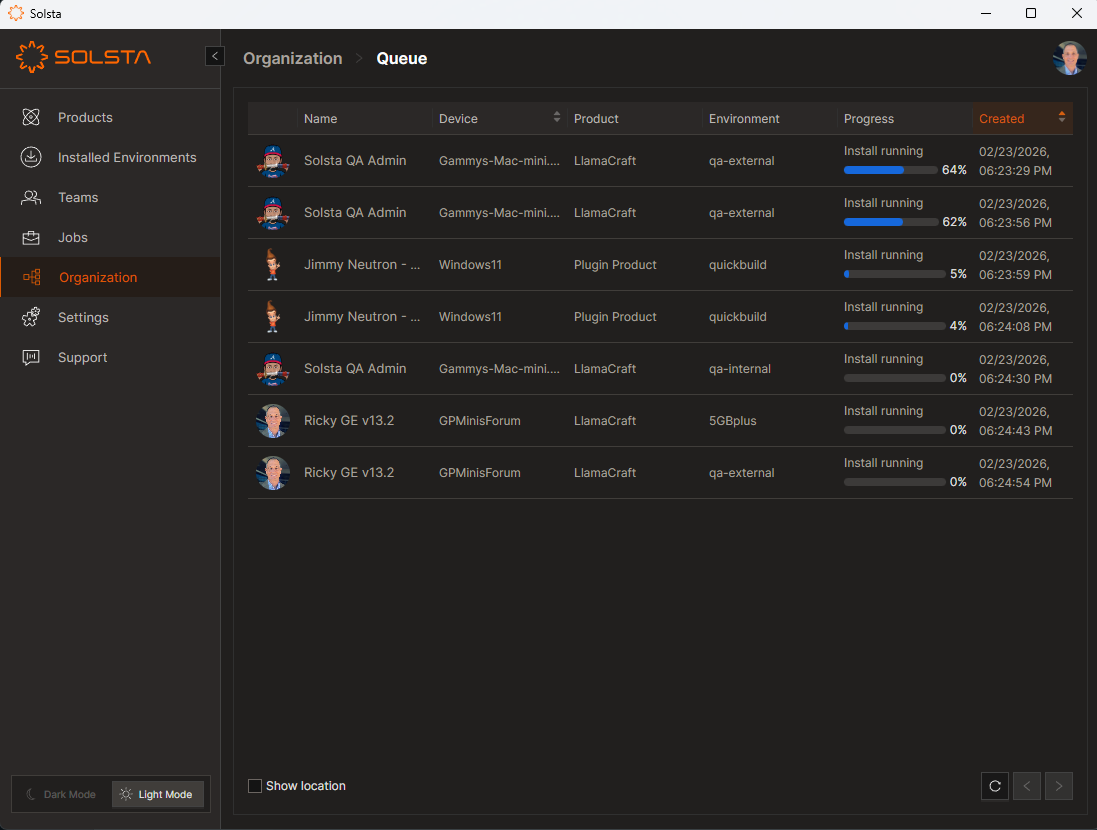
Visibility into All Downloads within the Organization
Beginning in version 1.13 of the Solsta Desktop Application, Organization Administrators are able to see ALL active or pending downloads within the organization, regardless of whether a network is throttled or not.
How Queueing Works
When a network is throttled, the orchestration service will allow the number of concurrent downloads up to the set threshold for the network. Throttling rules are set per network using CIDR network notation (e.g. 192.168.8.0/24).
Queue behavior
- Downloads within the threshold start immediately
- Downloads above the threshold enter a pending state
- Clients check in every 15 seconds
- Pending downloads start automatically when capacity opens
Threshold behavior
- Network thresholds apply to all downloads in the matching CIDR range
- Device thresholds limit concurrent downloads per machine
- When both are set, the lower applicable limit controls behavior
Interrupted downloads
- Paused downloads leave the queue
- Resumed downloads rejoin as new downloads
- Closed clients are removed gracefully
- Abandoned downloads (via crash or termination) are cleaned up after 10 minutes unless the clients check back in with the service
Network and Device Thresholds
When both device and network thresholds are set, the lower value will supersede the higher value (this will typically be the lower device threshold). For example, a network rule allows 4 concurrent downloads across the network and 2 concurrent downloads per device:
- Machine A starts 3 concurrent downloads. 2 will be allowed per device limits, the 3rd will be queued.
- 2 open download slots remain available for other machines in the network
Example Throttling Scenario
A studio’s network threshold is set to 5. A new build is deployed so 10 Solsta users receive an update notification. 8 of the users click “update” at roughly the same time.
- The first 5 users begin downloading the update immediately
- The next 3 users see a “Queued with organization…” status message on their Solsta client
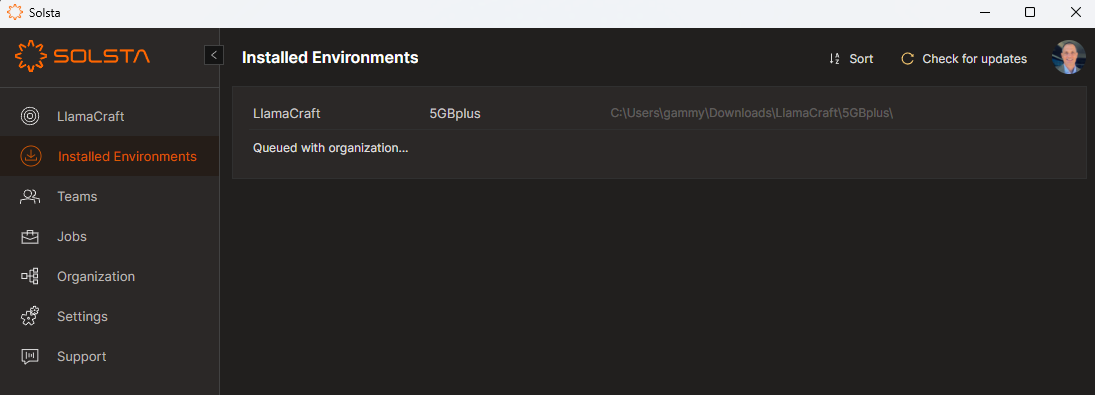
- When the first of the original 5 active downloads completes, one of the 3 pending downloads begins within ~15 seconds
- The process repeats until all downloads complete and the queue is cleared
Manage Network Rules
Admin permission required: Only Organization Administrators can create, update, or delete network rules and view the orchestration queue.
To view and manage the network rules:
- Hover over the Organization text on the navigation pane
- Click on Throttling
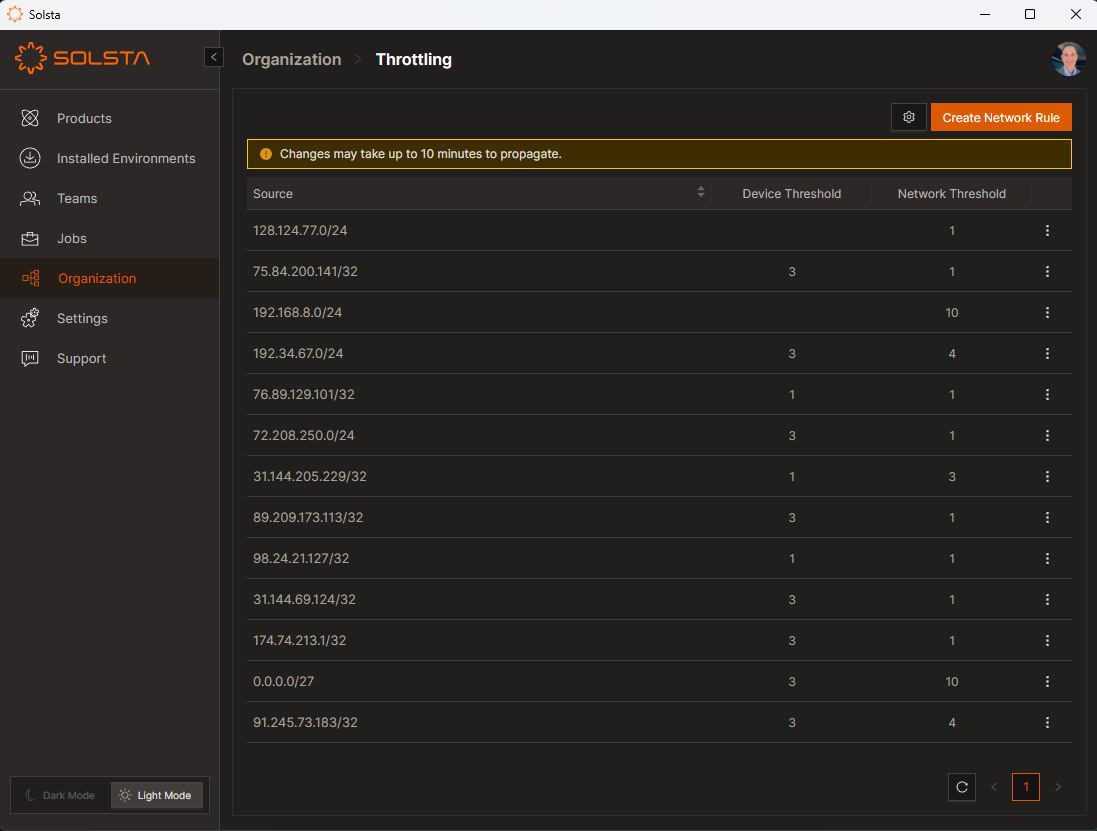
Create Network Rule
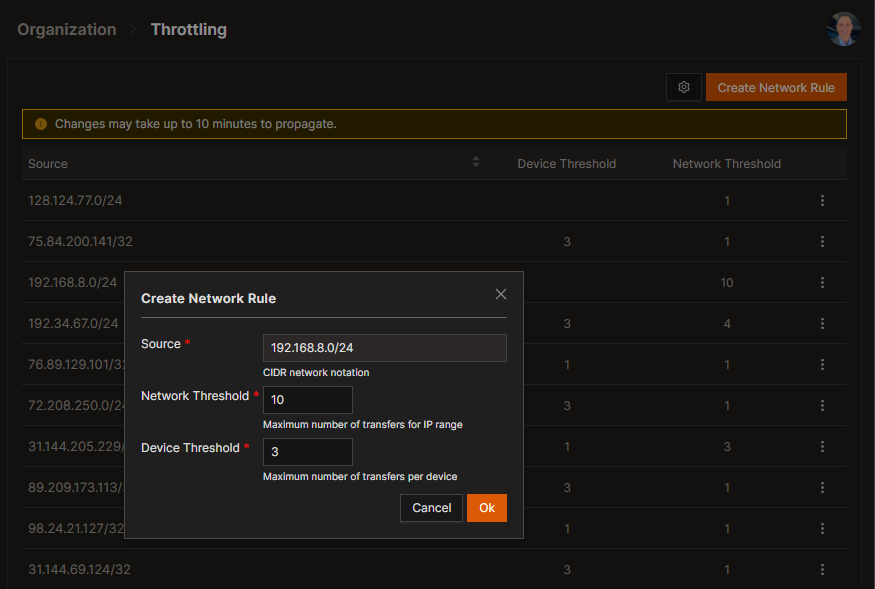
- Click on the Create Network Rule button on the right side of the UI. This brings up the Create Network Rule modal window.
- Source field: Enter an IP block using CIDR network notation (e.g. 192.168.8.0/24)
- Network Threshold field: Enter a positive integer for the maximum number of concurrent downloads to allow on this network
- Device Threshold field: Enter a positive integer for the maximum number of concurrent downloads to allow per device on this network
- Click Ok
Update Network Rule
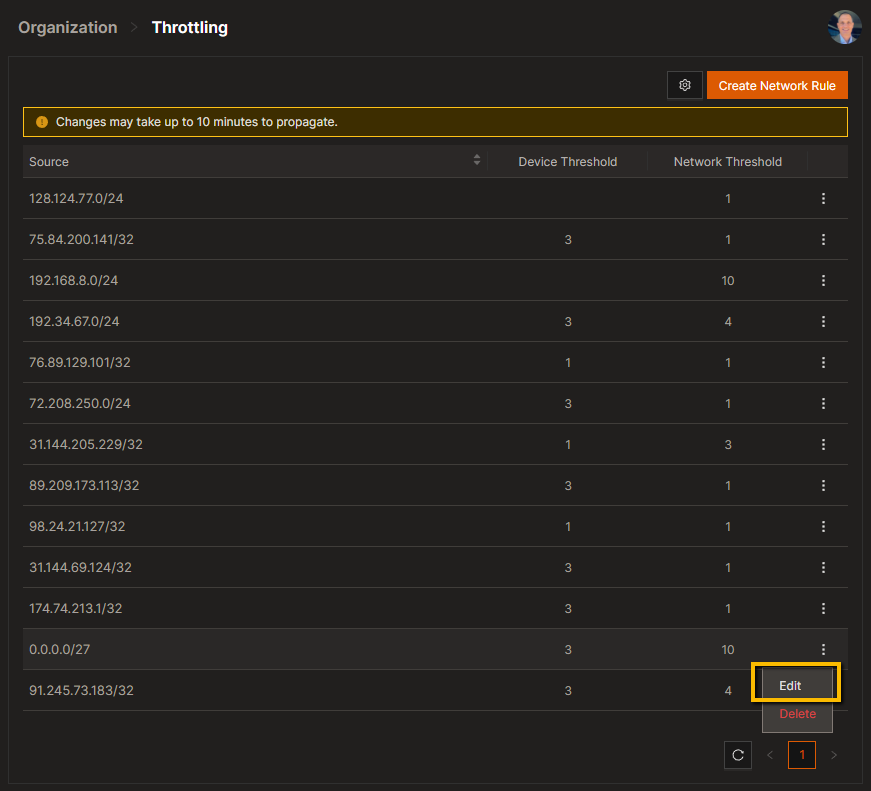
- From the Throttling screen, find the rule you want to edit and click the menu button, then select Edit from the context menu. This brings up the Edit Network Rule modal window.
- Source field: Enter an IP block using CIDR network notation (e.g. 192.168.8.0/24)
- Network Threshold field: Enter a positive integer for the maximum number of concurrent downloads to allow on this network
- Device Threshold field: Enter a positive integer for the maximum number of concurrent downloads to allow per device on this network
- Click Ok
Delete Network Rule
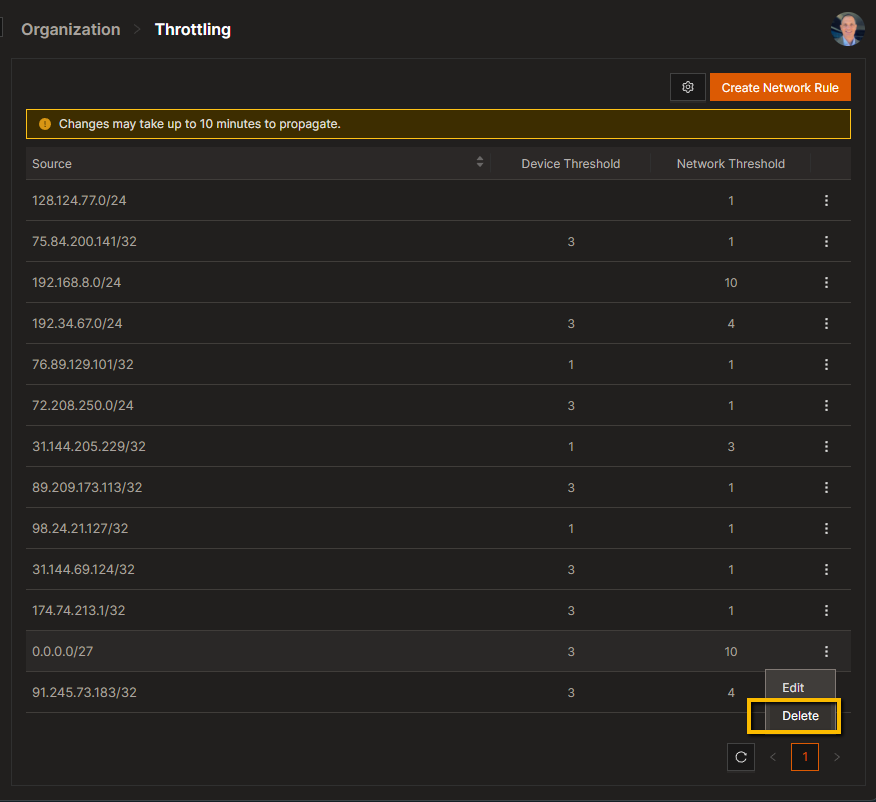
- From the Throttling screen, find the rule you want to delete and click the menu button, then select Delete from the context menu. This brings up the Delete Network Rule modal window.
- Click Yes to confirm you want to delete the rule
Rule Propagation Time
Heed the warning in the UI: Changes may take up to 10 minutes to propagate.
View Orchestration Queue
Only Organization Administrators can see the orchestration queue. Note that all downloads (active or pending) within the organization will be displayed in the queue. That is: the queue is not limited to only show downloads from throttled networks.
To view the queue, log in as an Organization Administrator, then
- From the navigation pane, hover over Organization item
- Click on Queue
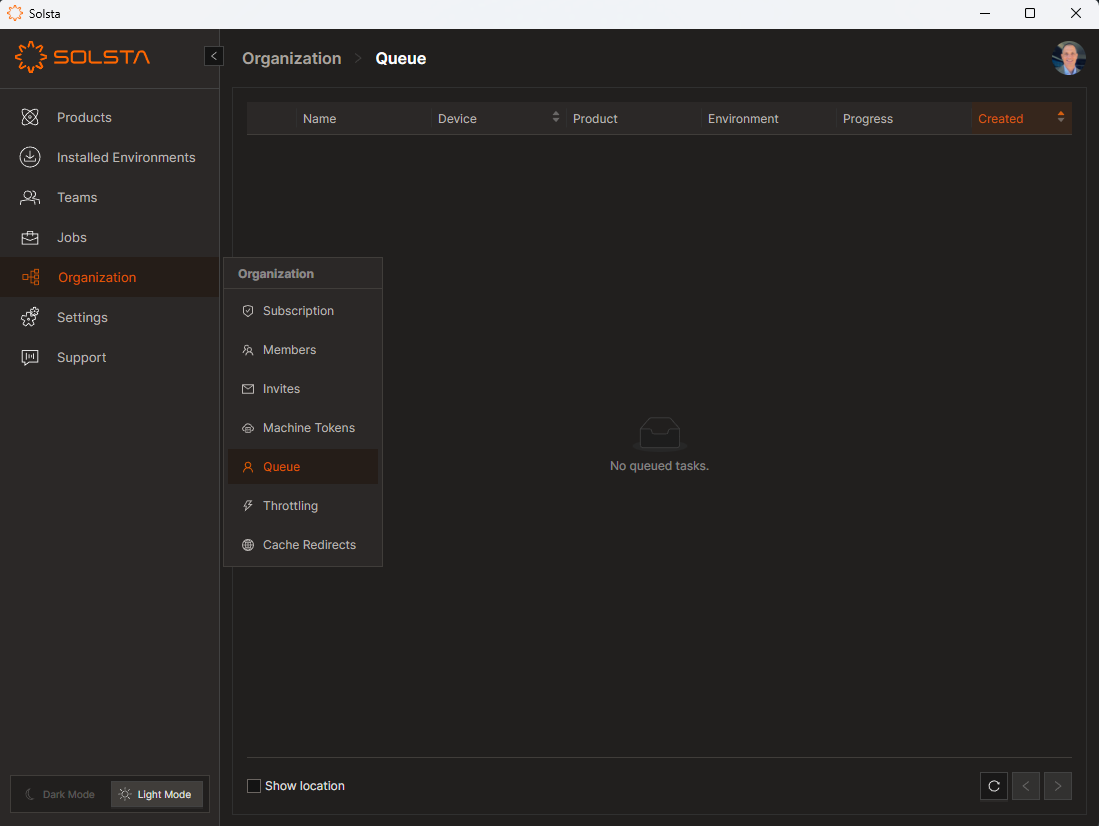
The queue shows active and pending downloads, along with the following information:
- Name - Solsta user initiating the download
- Device - Name of device (as specified in the user machine’s OS)
- Product - Name of Solsta product being installed/updated
- Environment - Name of Solsta environment being installed/updated
- Location - Shows the path on the machine where the environment is being installed to. This column is hidden by default, but can be displayed using the “Show Location” toggle box (see below)
- Progress - Progress of install or update (reported in 15 second intervals)
- Created - Timestamp for when the download reported to the Orchestration Service
From this screen, an Organization Administrator can click on the Show location box on the top left of the UI to toggle the Location field on/off for each download in the queue.
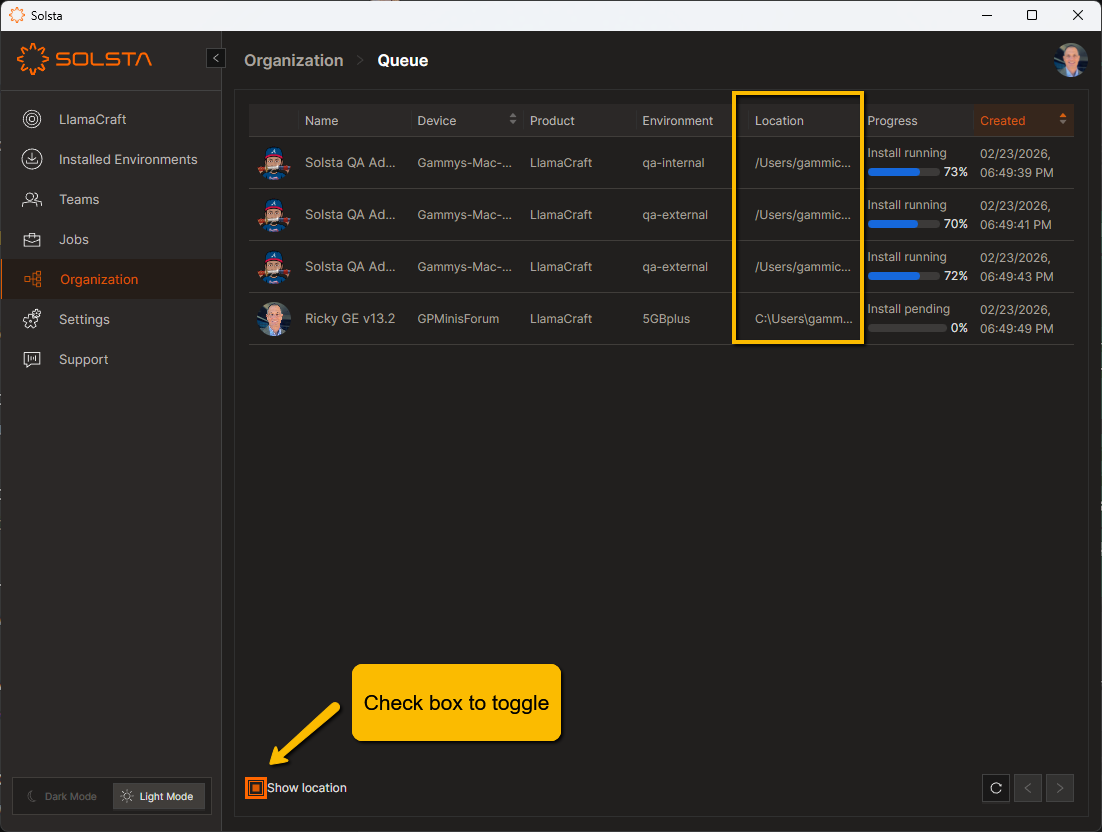
You can hover over the value of each row in the Location column to display the full path.


